Getting Started
This guide walks you through creating your first sheet or document in Wafflebase.
Sign In
Go to wafflebase.io and click Get Started. Sign in with your GitHub account.
Create a Sheet or Document
After signing in, you'll see your workspace. Click the New dropdown button to choose what to create:
- New Document — A word-processor-style editor for writing and formatting text
- New Sheet — A spreadsheet for structured data, formulas, and charts
- New Presentation — A slide deck with themes, layouts, and shapes
- New Note — A Markdown editor with a live preview for quick notes and docs
- New Board — An infinite canvas for sticky notes, shapes, and images
To bring existing work in, the same menu has a single Upload files… entry. Pick as many files as you like — Wafflebase reads each file's extension and creates the matching document: a spreadsheet from .xlsx or .csv, a document from .docx, a presentation from .pptx, a viewer for a .pdf or an image, and a stored file for anything else. Dragging files onto the documents list does the same thing. See Import & Export.
Inside a workspace the menu also offers New from template, New folder, and Import from Miro….
Try a Sheet
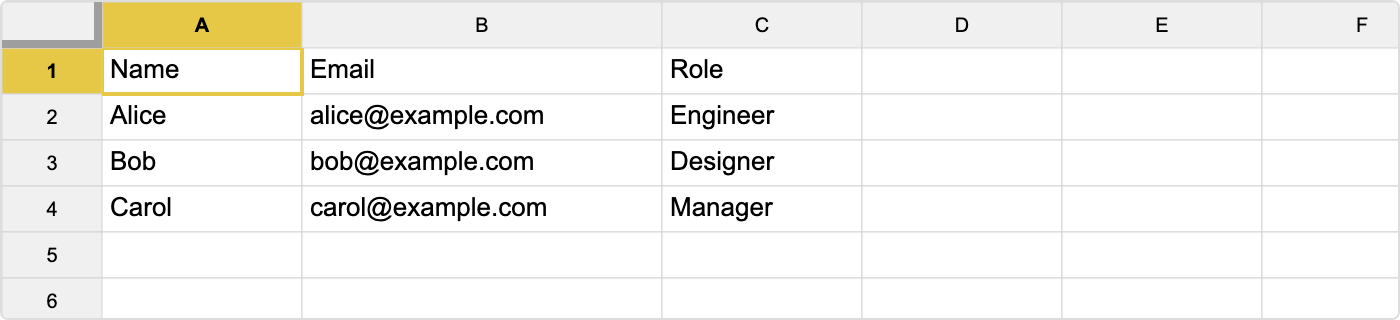
Select New Sheet to create a blank spreadsheet. Let's build a simple contact list. Click on cell A1 and type the following data, pressing Tab to move right and Enter to move to the next row:
| A | B | C | |
|---|---|---|---|
| 1 | Name | Role | |
| 2 | Alice | alice@example.com | Engineer |
| 3 | Bob | bob@example.com | Designer |
| 4 | Carol | carol@example.com | Manager |
TIP
Press Tab to move to the next column, Enter to move to the next row. Press Escape to cancel editing.
Your spreadsheet should look like this:
Resize Columns
If the email column looks cramped, hover over the border between column headers B and C, then drag it to the right to widen column B.
Add a Tab
Your document starts with one tab called Sheet1. Click the + button next to the tab bar at the bottom to add a new tab. Double-click the tab name to rename it.
Try a Document
Select New Document to open a blank page. Start typing — the editor works like a word processor. Use the toolbar to apply formatting such as bold, italic, and text alignment.
For a full walkthrough, see the Writing a Document guide.
Try a Note
Select New Note for a Markdown editor with a live preview. Type Markdown on the left and watch it render on the right:
# Meeting Notes
- [x] Review the roadmap
- [ ] Assign owners
Switch between Split, Editor, and Preview views from the toolbar. For more, see the Writing a Note guide.
What's Next
Sheets:
- Build a Budget Spreadsheet — Learn formulas, formatting, and layout
- Formulas — Full list of supported functions
- Charts & Pivot Tables — Visualize your data
- Data Validation — Checkboxes, dropdowns, and input rules
- External Datasources — Query a database from a tab
- Keyboard Shortcuts — Speed up your workflow
Docs:
- Writing a Document — Text editing, formatting, and page layout
- Keyboard Shortcuts — Document editor shortcuts
Slides:
- Build a Deck — Slides, text boxes, shapes, and images
- Themes & Layouts — Consistent colors, fonts, and placeholders
- Keyboard Shortcuts — Presentation editor shortcuts
Notes & Board:
- Writing a Note — Markdown editor with live preview
- Using the Board — Infinite canvas with sticky notes and shapes
PDF & Files:
- Viewing PDFs — Upload, read, and comment on PDF files
- Viewing Images — Store and view images alongside your documents
- Organizing with Folders — Group documents inside a workspace
Common:
- Collaboration & Sharing — Share and edit together in real time
- Import & Export — Which formats come in, and what goes out