Build a Budget Spreadsheet
In this guide, you'll build a monthly budget tracker from scratch. Along the way, you'll learn how to use formulas, format numbers, and organize your data.
1. Set Up the Structure
Create a new document and enter the following headers and data:
| A | B | C | |
|---|---|---|---|
| 1 | Category | Budget | Actual |
| 2 | Rent | 1500 | 1500 |
| 3 | Groceries | 400 | 380 |
| 4 | Transport | 200 | 220 |
| 5 | Utilities | 150 | 135 |
| 6 | Entertainment | 100 | 95 |
| 7 | Savings | 500 | 500 |
2. Add a Totals Row
Click on cell A8 and type Total. In B8, type a SUM formula to add up all budget amounts:
=SUM(B2:B7)Press Enter. The cell should display 2850. Now do the same in C8:
=SUM(C2:C7)3. Calculate the Difference
Add a Difference column to see if you're under or over budget. In D1, type Difference. In D2, enter:
=B2-C2This shows how much you saved (positive) or overspent (negative) for Rent. Now you need the same formula for every row.
Copy a Formula Down
- Select cell D2
- Drag the fill handle (the small square at the bottom-right corner of the cell) down to D8
- Each row now calculates its own difference — the cell references adjust automatically
Your spreadsheet should now look like this:
| A | B | C | D | |
|---|---|---|---|---|
| 1 | Category | Budget | Actual | Difference |
| 2 | Rent | 1500 | 1500 | 0 |
| 3 | Groceries | 400 | 380 | 20 |
| 4 | Transport | 200 | 220 | -20 |
| 5 | Utilities | 150 | 135 | 15 |
| 6 | Entertainment | 100 | 95 | 5 |
| 7 | Savings | 500 | 500 | 0 |
| 8 | Total | 2850 | 2830 | 20 |
4. Use Conditional Logic
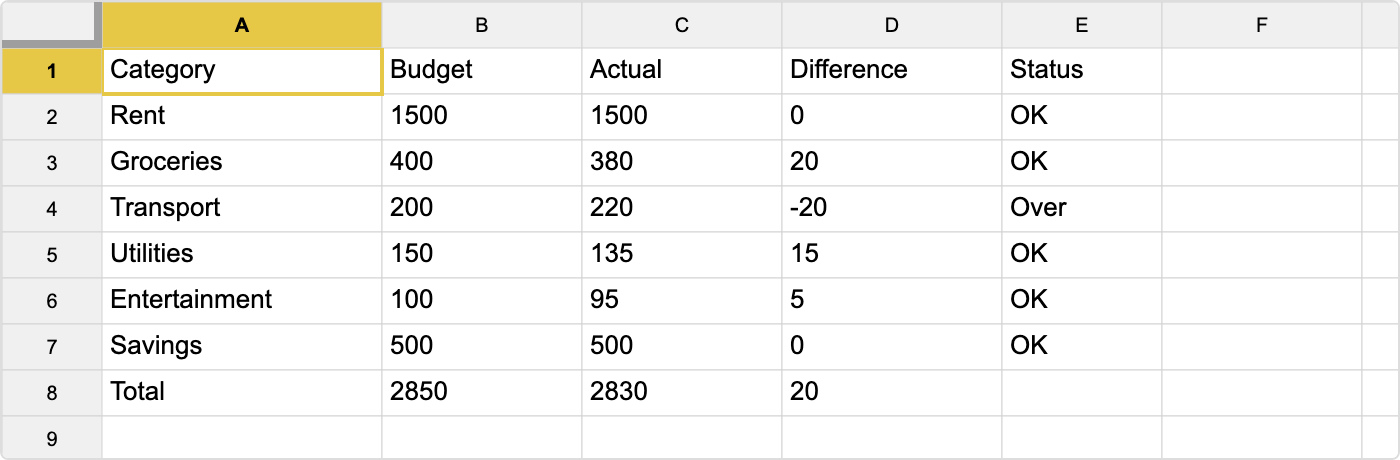
Let's add a Status column that says "Over" when you've exceeded the budget and "OK" otherwise. In E1, type Status. In E2, enter:
=IF(D2 < 0, "Over", "OK")Copy this formula down to E7. Transport should show "Over" since you spent more than budgeted.
Here's the completed budget spreadsheet:
5. Useful Formulas for Budgets
Here are some formulas you might find useful:
Average Spending
=AVERAGE(C2:C7)Tells you the average actual spending across all categories.
Biggest Expense
=MAX(C2:C7)Finds the largest actual spending amount.
Count Over-Budget Items
=COUNTIF(D2:D7, "<0")Counts how many categories went over budget.
Budget Utilization
=C8/B8*100Shows what percentage of your total budget you've used.
What You Learned
- SUM to total up a column
- Cell references that adjust when copied (relative references)
- IF for conditional logic
- AVERAGE, MAX, COUNTIF for data analysis
What's Next
- Formulas Reference — Full list of supported functions
- Collaboration & Sharing — Share this budget with others